Individual or Packs of documents can be added to the Onboarding library. Documents such as ‘Offer Letter’ or ‘Contract’ documents can be added to this area.
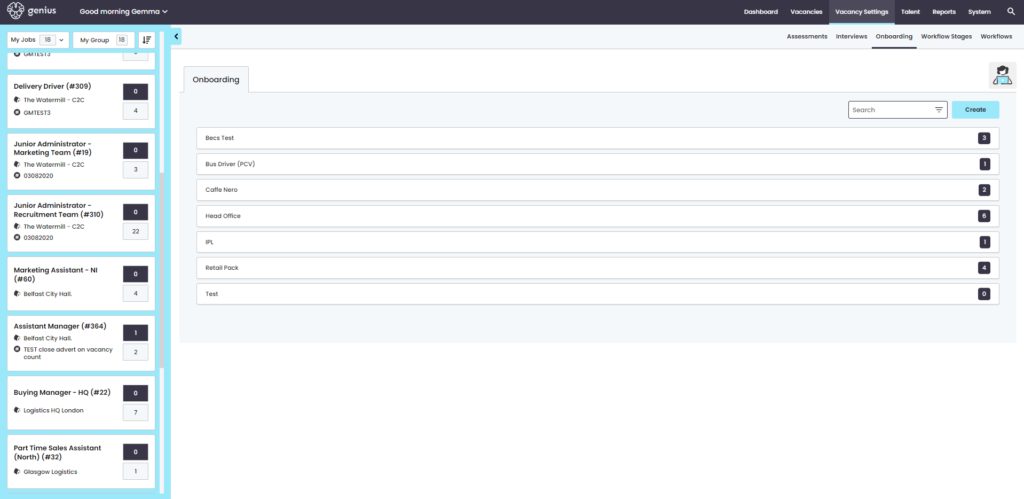
Mailmerge Documents
To add a mailmerge document, the word document itself must first be formatted to allow candidate information to be merged into the document.
The available merge fields are:
- {{Applicants-Email}}
- {{Application-AddressFormatted}}
- {{BusinessAreaName}}
- {{Candidates-Address}}
- {{Candidates-Forename}}
- {{Candidates-Postcode}}
- {{Candidates-Surname}}
- {{Offer-ContractType}}
- {{Offer-EndDate}}
- {{Offer-NumberOfDays}}
- {{Offer-NumberOfHours}}
- {{Offer-ProbationaryEndDate}}
- {{Offer-Salary}}
- {{Offer-StartDate}}
- {{Offer-WorkingPattern}}
- {{Vacancy-LineManagerEmail}}
- {{Vacancy-LineManagerForename}}
- {{Vacancy-LineManagerSurname}}
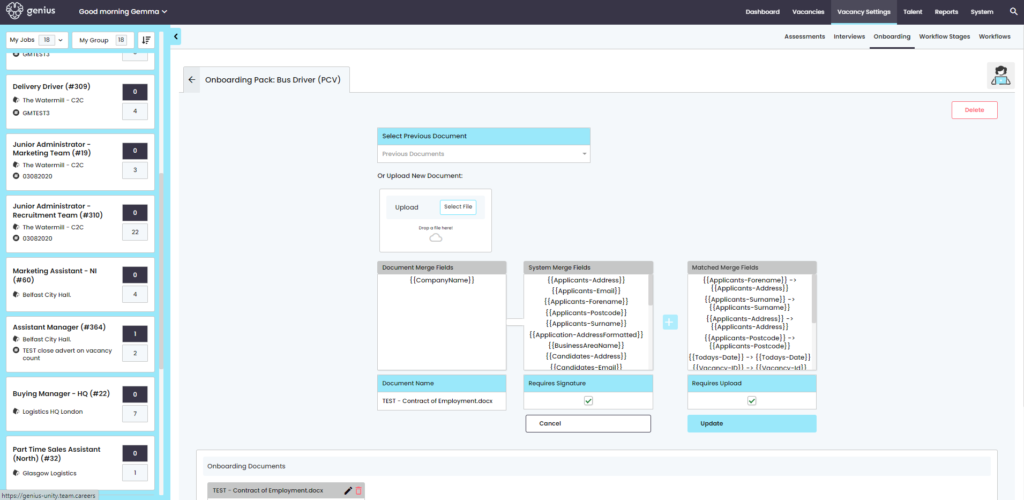
Once the document has been formatted, upload into this area by drag and drop or select the file.
Any merge fields in the document will appear in the left hand column.
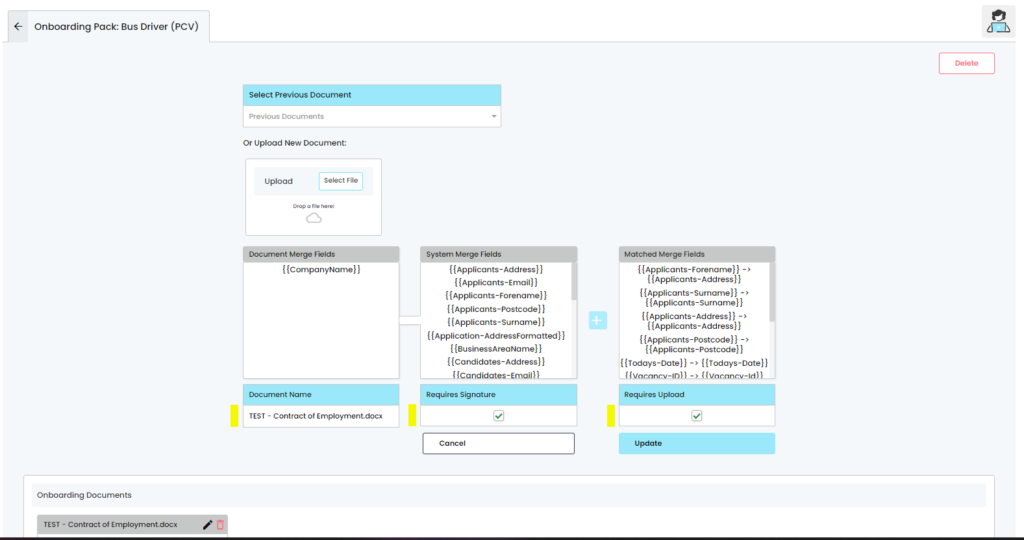
Give the document a title and then confirm the document functionality.
Document Functionality
Tick the box to evoke functionality for a signature being requested from the Candidate
Any document that is created and associated to a vacancy has to be manually assigned to a Candidate.
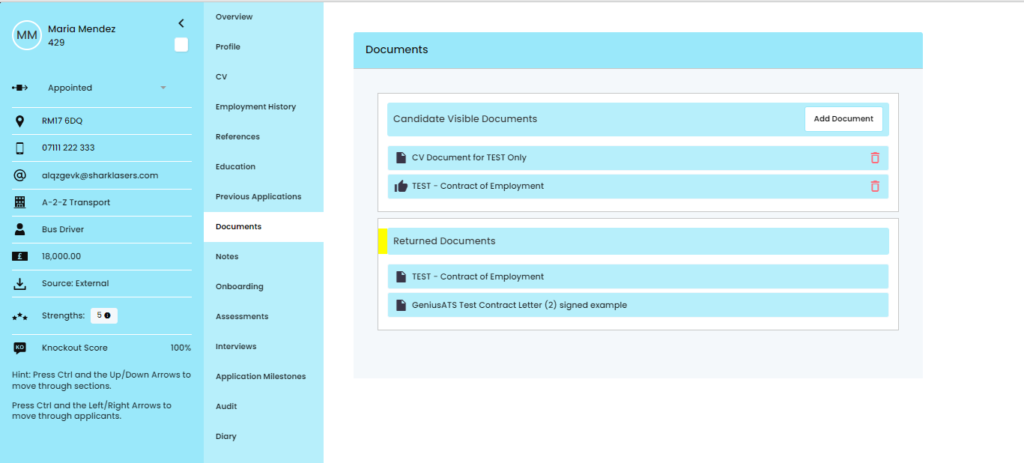
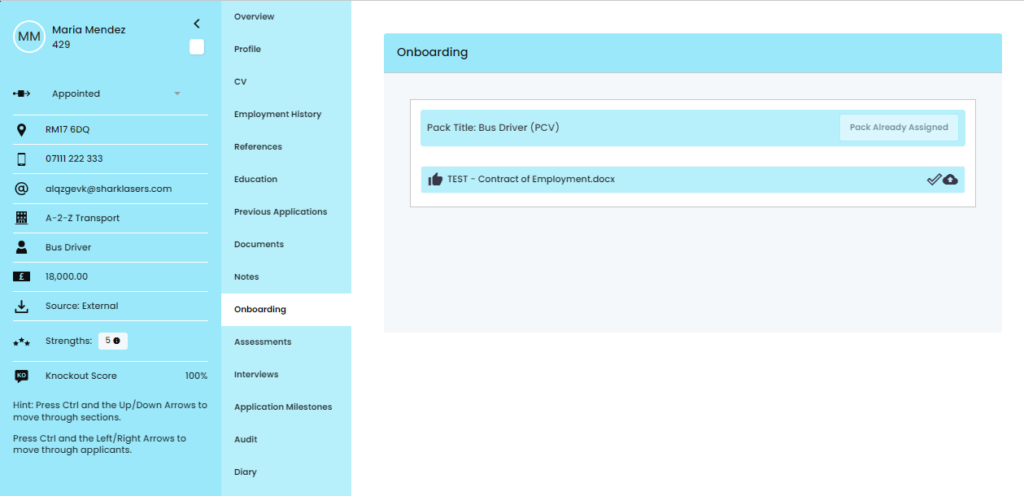
When a document is created and the [Requires Signature] or [Requires Upload] has been ticked, this will be presented to the control panel user and the candidate via their Candidate Profile.

Control Panel View
Candidate View
The candidate can [download], [upload] and [accept] a document
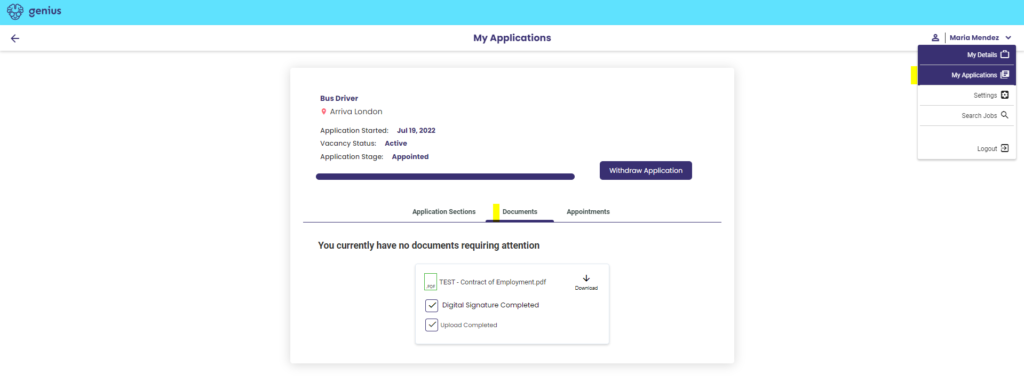
The candidate can accept a document by clicking [confirm]

The candidate can [upload] a document by clicking the button and choosing a file from their document library or desktop.
Any returned documents are available to view in the candidate record in the [Document] tab under [Returned Documents]