Add, edit and manage unlimited Locations / Regions.
Individual Locations and Regions set in this area are used on the front end website to show potential candidates where vacancies are located on a map and list view.
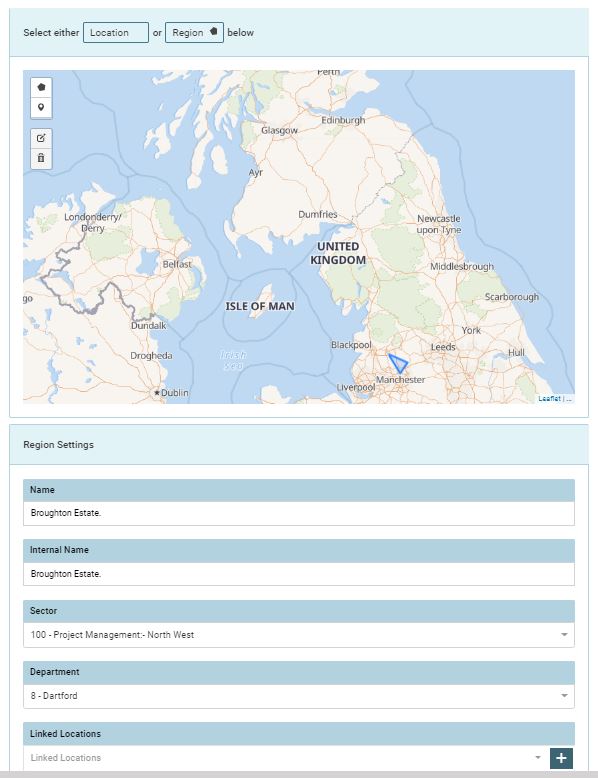
Create Location
Each location requires a [Name] & [Internal Name if this differs].
If the location is required to specifically show vacancies that are within a specific [Sector], you can assign a [Sector] to this location.
If the Location is required to specifically show vacancies within a specific [Department], you can assign a [Department] to this location.
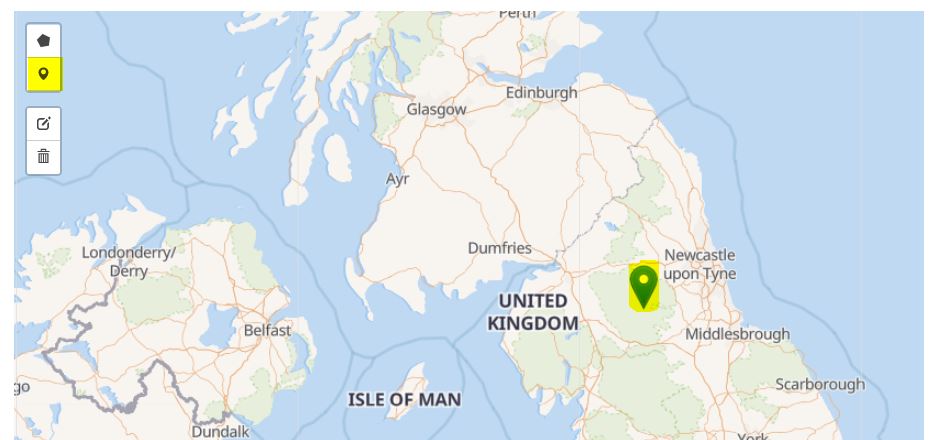
Always check that the map is showing the PIN in the correct location on the map when creating a new location. Click on the Icon and place it on the map.
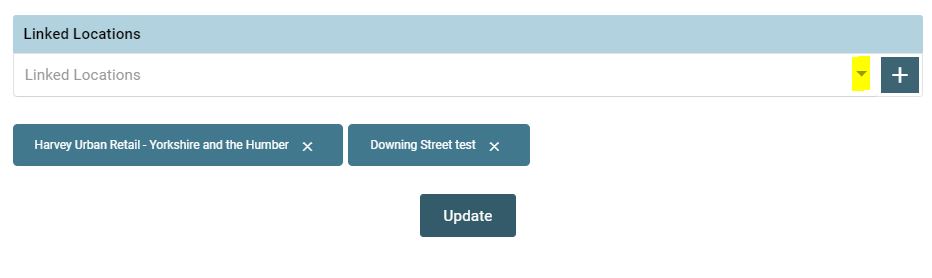
Linked Locations
Locations can be linked together should they need to be associated.
Use the drop-down and click on the [+] add button to add locations
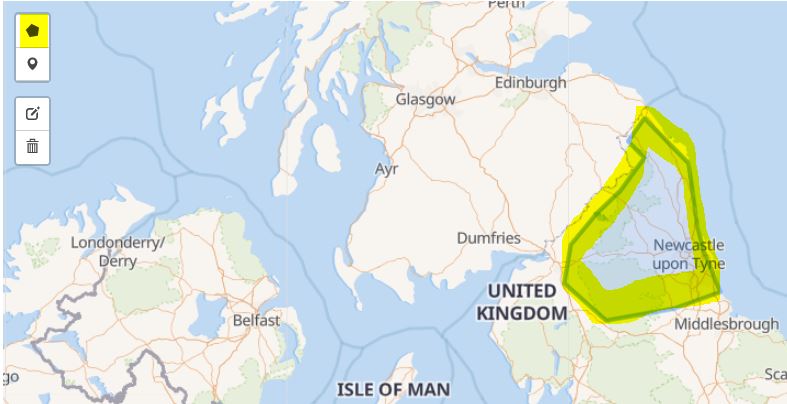
Create Region
To create a region, click on the Polygon image on the left and then click on the map in the starting location. Then click an area and finish back at the original point.
NOTE:
Some Job boards will take the center of the Region to allow them to add a posting to their board. This is not controlled by GeniusATS but by the Job board provider.
Field Limitations
- Internal Name limited to 100 characters
- Street limited to 800 characters
- Town limited to 50 characters
- Postcode limited to 8 characters
- Code limited to 50 characters