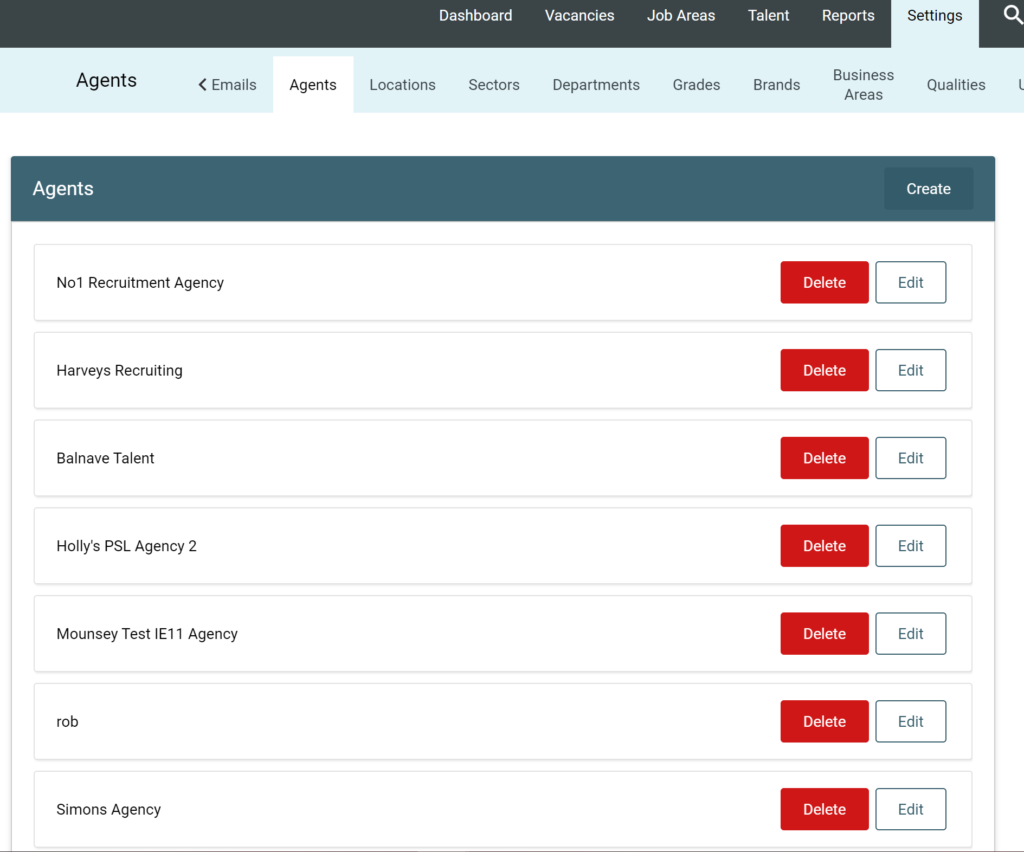
The Agents section within GeniusATS is a list of all recruitment agencies and recruiters you may want to assign to a vacancy.
Under Settings > Agents you can add and manage any recruitment agencies you work with, whilst listing the areas their specialism.
Adding a New Agency
This section is dependent on your User Permissions. If you do not have permission to see this – please speak to a super user of the system.
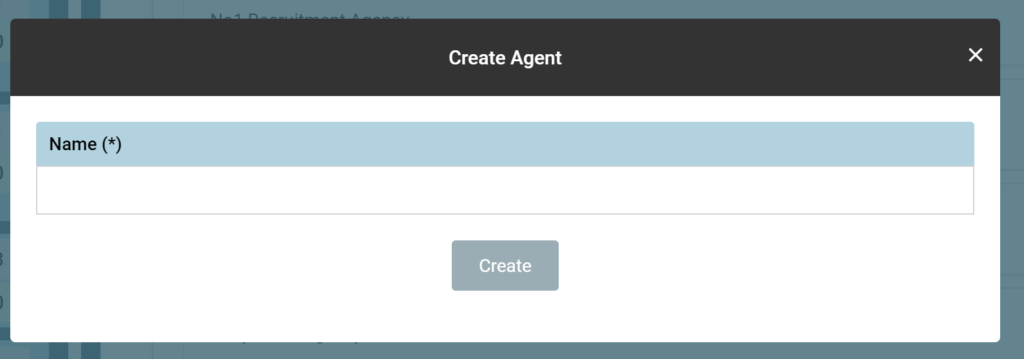
Click ‘Create’ and enter the agency name in the box when prompted. Then click ‘Create’.
Find the name of your newly added agency in the list, and click ‘Edit’. You will then need to fill in;
- Percentage – This is the amount of commission you have agreed to pay them for any successful hires
- Address Line 1
- Address Line 2
- Town/City
- Postcode
- Phone
- Specialisms (Ensure you click the plus sign ‘+’ once you have added a specialism)
- Notes – You can free type any notes you may find relevant in here
- ‘Save’ to store all the above data
Add Contact
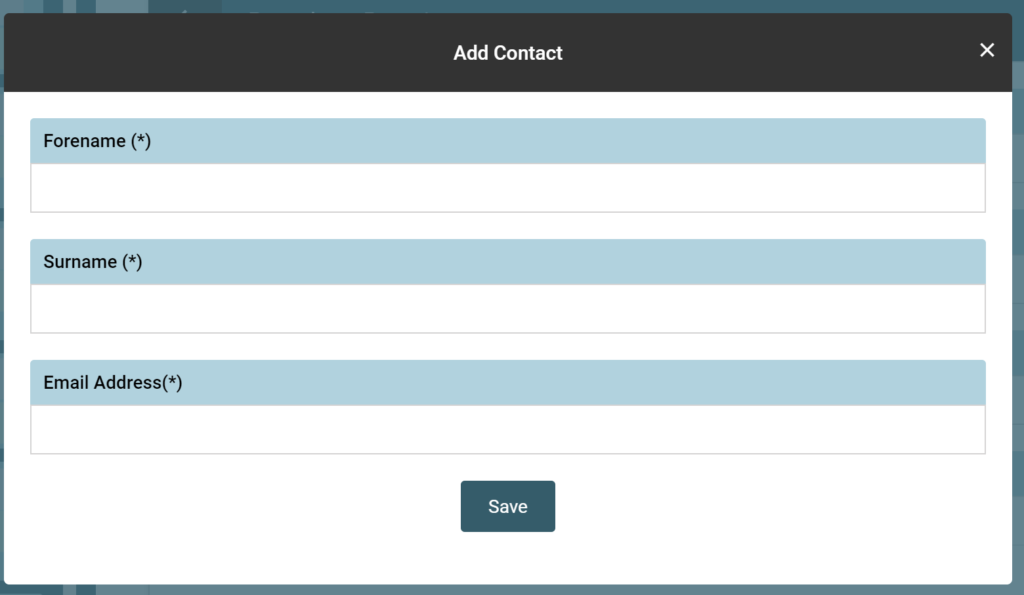
You may wish to add details of a contact you regularly work with at the agency. Click ‘Add Contact’ then fill in the required information;
- Forename
- Surname
- Email Address
- Then ‘Save’ to store their details
Adding Agents within a Vacancy
When creating or editing a vacancy, you can select the Agencies tab and complete the information below to apply to your chosen vacancy;
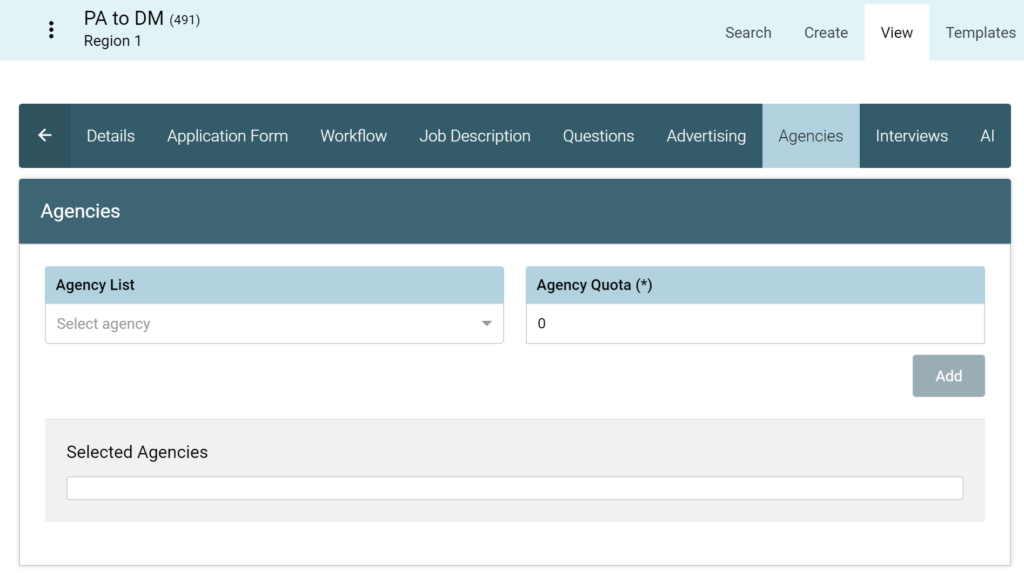
- Choose the agency from the drop down list
- Enter the quota (Number of CV’s you invite them to submit)
- Click ‘Add’
You can choose to invite as many agencies, and CV’s/Quotas as you wish.
The agent is sent an email when the vacancy either goes live (based on the advertisement dates) or, if the vacancy is already live it will be sent straight away.
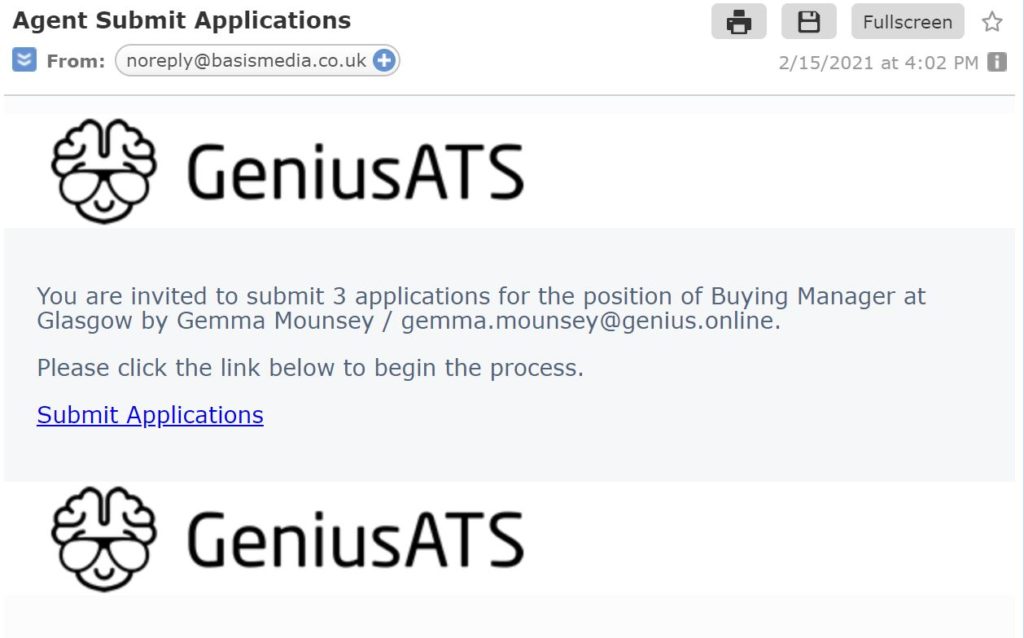
The Agent should click the link and a page will appear asking them to add in the number of CV’s of the candidates they are allowed to add. Simply drag and drop or upload the CV into the area shown.
NOTE: If the system believes that the candidate being added is a duplicate the Agency will be asked to provide more information, such as; full name, address, email address before being allowed to submit the candidate.
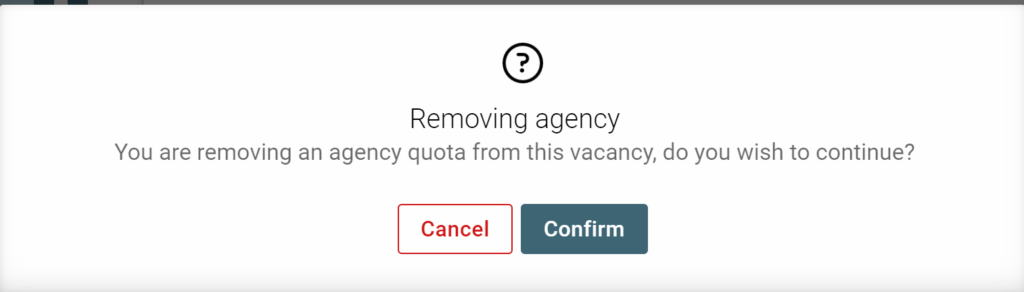
To remove a chosen agency from the vacancy, simply click the ‘x’ next to their name in the Selected Agencies box and ‘Confirm’.