To create a timeslot appointment for a Candidate or Candidates, progress the candidate to the workflow stage which has an appointment associated – for example, 1st Interview.
A pop up will appear in the control panel offering the option to create an
- All day appointment
- Timeslot
- Standard appointment
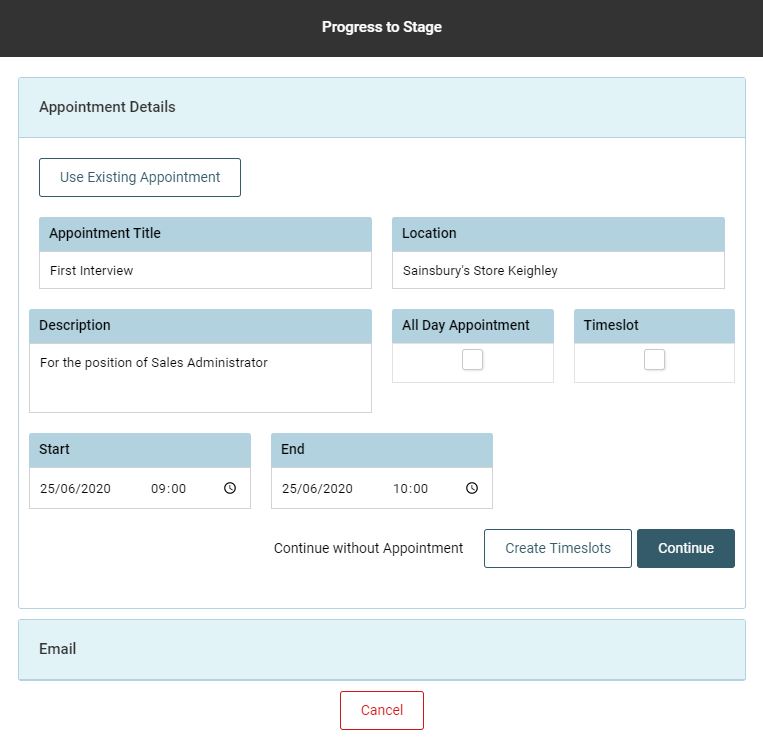
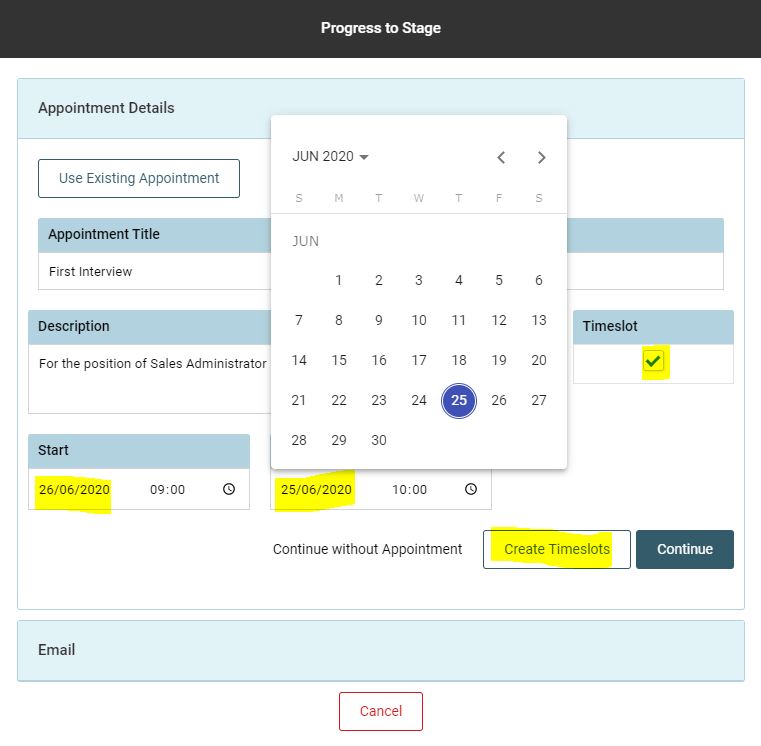
Select Timeslot
Enter the details of the day / time from and to for the appointment and click [create timeslots]
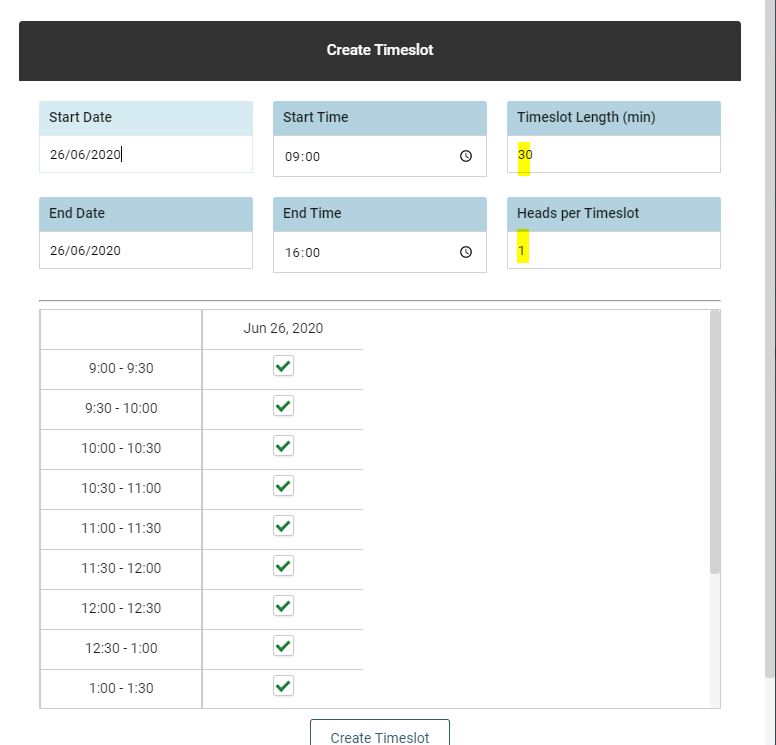
Adjust the [timeslot length] and [heads per timeslot] to the correct figures – NOTE: the appointment slots listed underneath will automatically adjust to match the requirements.
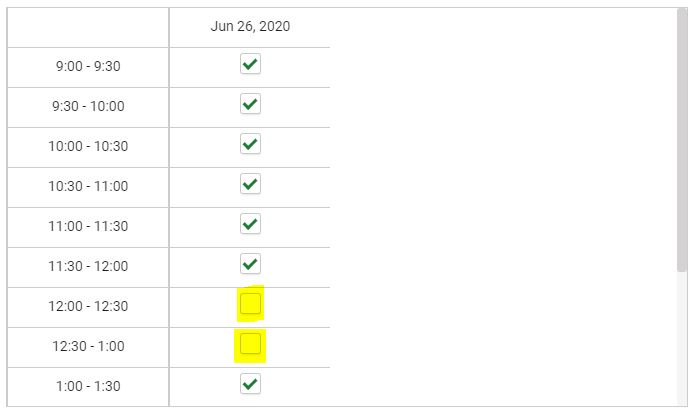
Untick any slot which you do not wish to offer the the candidate(s)
Click [Create Timeslot] & [Continue]
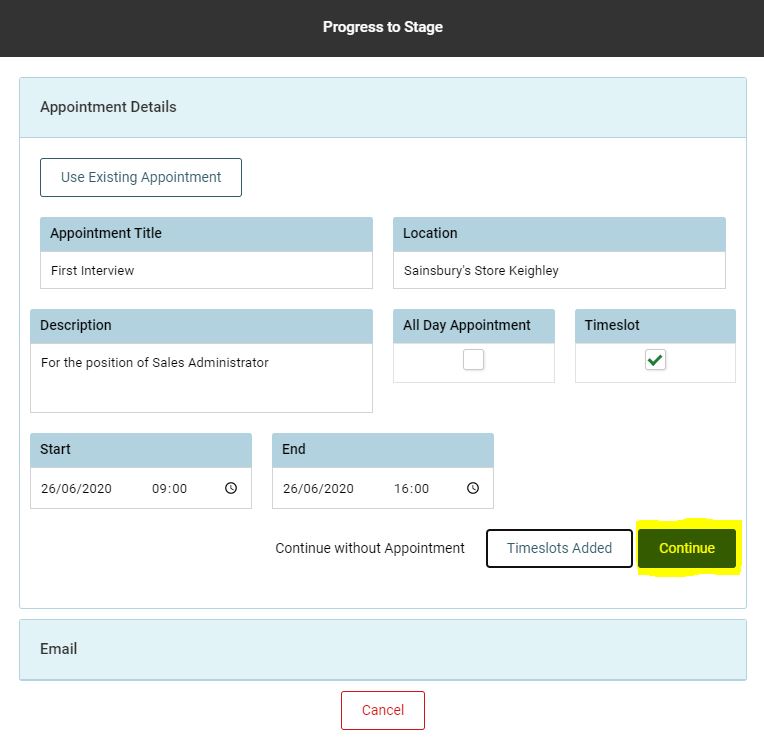
The [Email] section will now open up.
Here you can select the email template you wish to use, if not the default email which has been set in the workflow.
- You can edit the email on screen
- Add a delay of [x] hours before the email sends from the system
- Go back to manage the appointment
- Continue without sending (the email will not go to the candidate)
- Send