The GeniusIQ Dashboard shows all information relevant to all users, basing the information on the individuals user permissions.
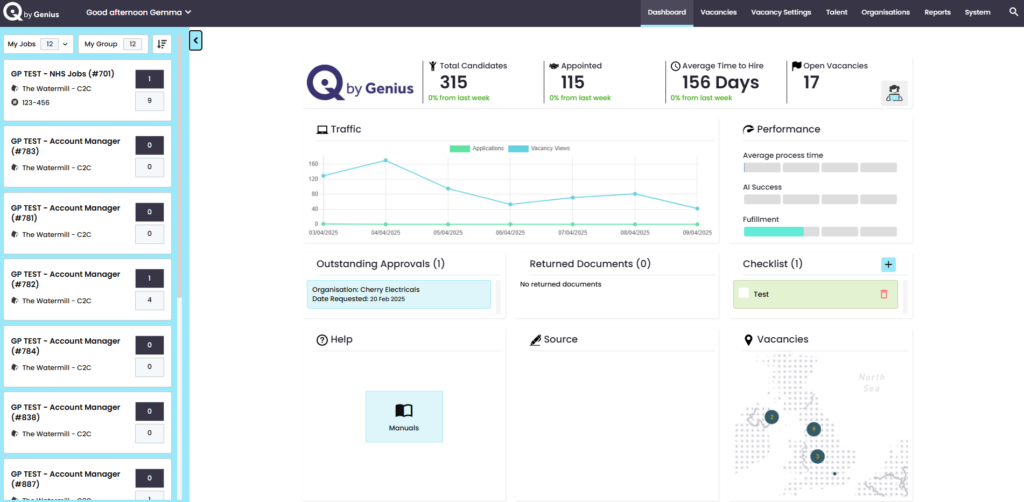
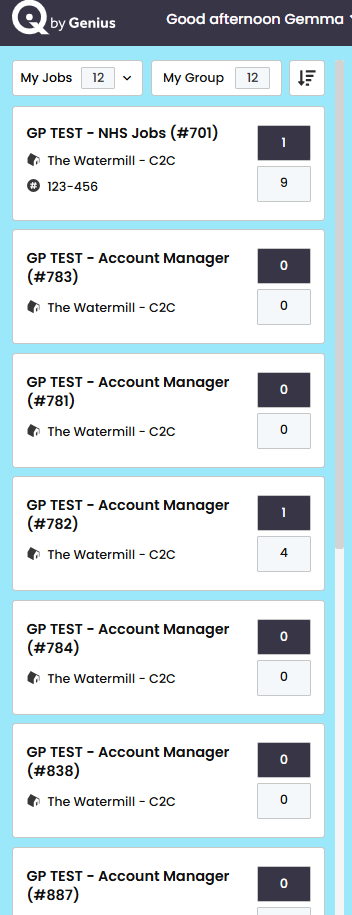
My vacancies are listed on the left hand side of the screen. You then have the option to view all vacancies, and as long as you have the permission you can view all of the vacancies within the system.
To view more information about the vacancy, click on a square and it will expand to show the following:
Note: This will also take you into the vacancy itself (away from the dashboard)
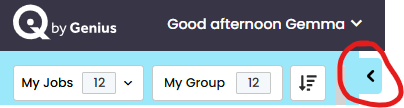
The tray can be opened/closed by clicking on the arrow at the top right-hand side of the panel.
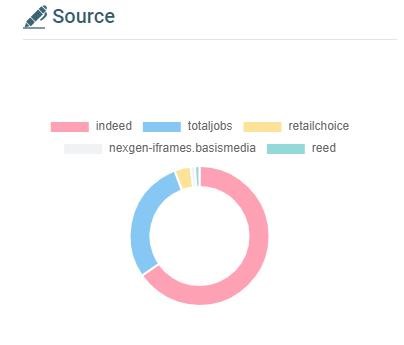
Source
The Vacancy Source is an indicator of where your applicants are coming from: Agencies, Control Panel or External. This give the top 5!
Stats
The stats display overview information about the vacancies the user has permission to view:

NOTE: These are indicators only – you cannot click on them to be directed to these sections within the control panel
Performance
This indicator gives a snapshot of the performance of your vacancies
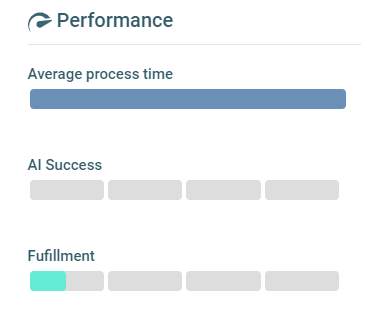
AI Success: Based on the number of appointments that were an AI match.
Fulfilment: Based on number of head count required compared to number filled. .
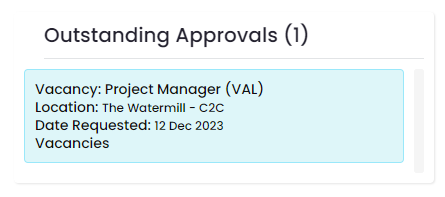
Outstanding Approvals
This will quickly show any vacancies that are waiting for approval .
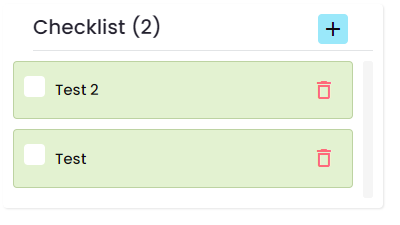
Checklist
This will show ……………
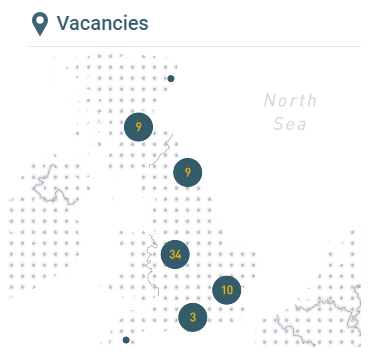
Vacancies
This will show all current live vacancies on a map.
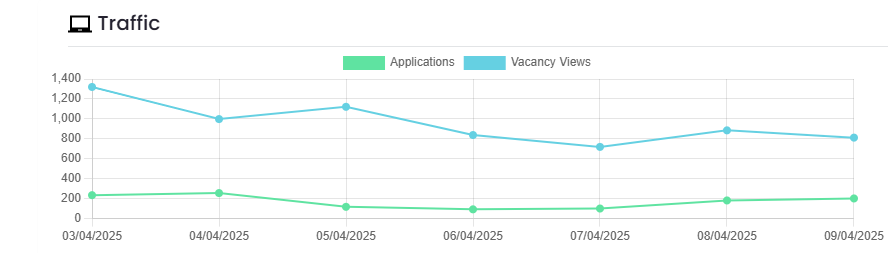
Traffic
This gives a snapshot of the dates of when views and applications are taking place.
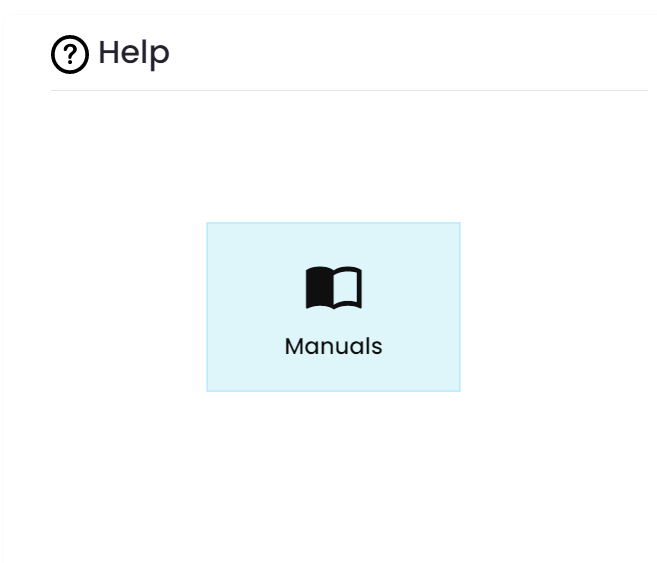
Help
The system user guide can be accessed from here. Clicking on the tile will bring up the information required or redirect you to the page where the information is held
Navigation
The navigation bar is located across the top of the page and permission dependant.

Click the section you wish to view to open up more options or to visit a specific page.

Logout
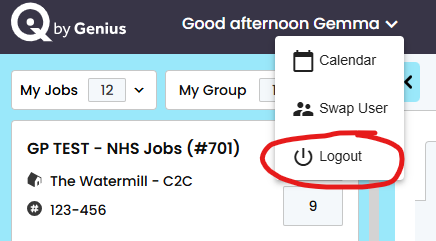
To logout of the system click on your name in the top left-hand area of the page and a [log-out] button will appear