GeniusATS provides a tab within the Vacancy Management area which allows the control panel user to create the vacancy advert AND to build up a preview of what the advert will look like on the candidate facing ‘Search & Apply’ pages.
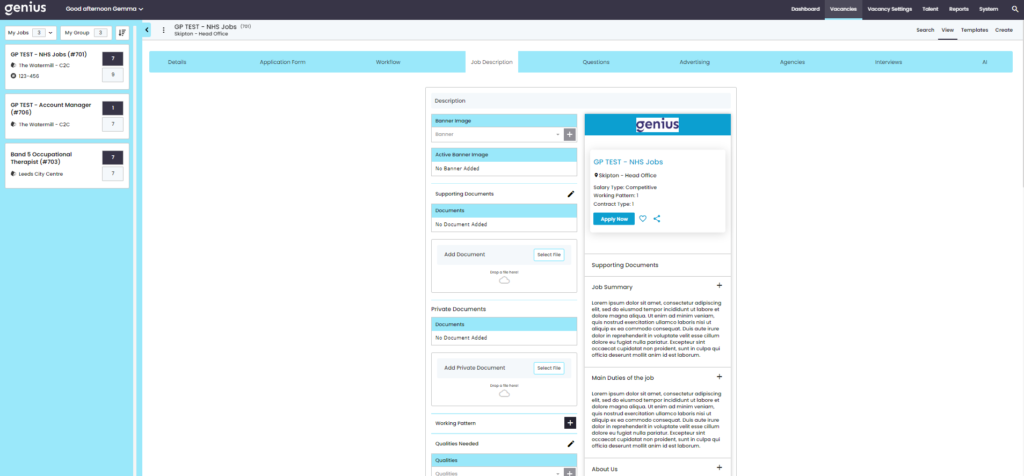
The header banner and button colour’s are branded per customer to ensure consistency from any careers website.
Note: The preview is only customisable with regards to the information you wish to display, not the overall layout of the page. The only exception to this is; as you build the information in the vacancy advert that there are options to drag and drop the content information sections into the order you wish them to be displayed.
Fields
Banner Image
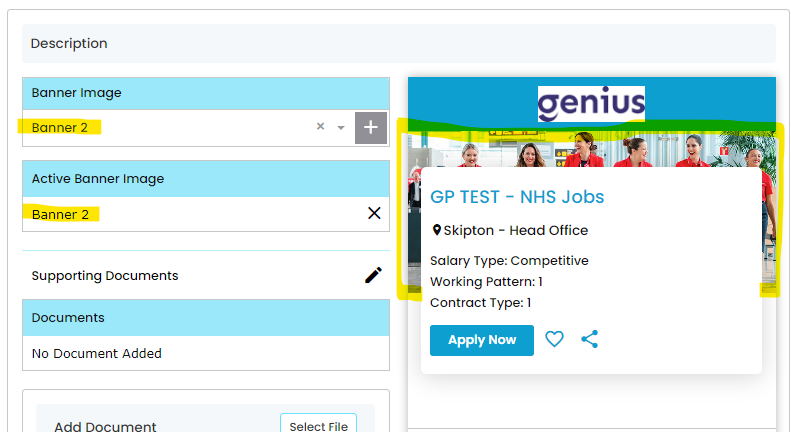
The banner images are collected at the set up phase of the project. These are not compulsory so may not be required, but if they are then a dropdown of images can be associated to the vacancy template.
Vacancy Documents
Here you are able to upload any documents you feel need to be included in the vacancy for a candidate to download at the time of application. You can do this by using the ‘Select File’ button and searching for the correct file to upload or you you can use the drag and drop function. Once your documents have been uploaded they will appear here. If you need to delete them at any time, use the bin icon on the left.
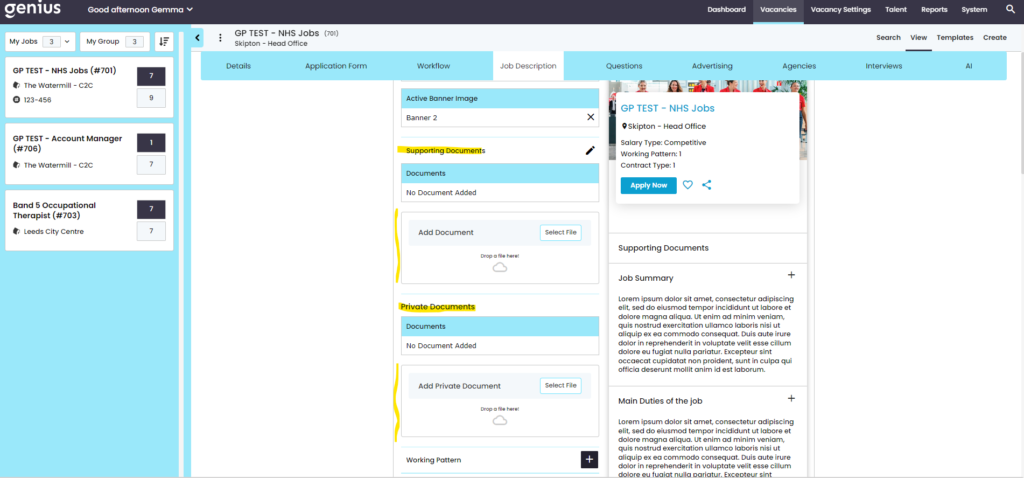
Supporting Documents – Visible to the applicant
Private Documents – Visible in the vacancy template only
Working Pattern
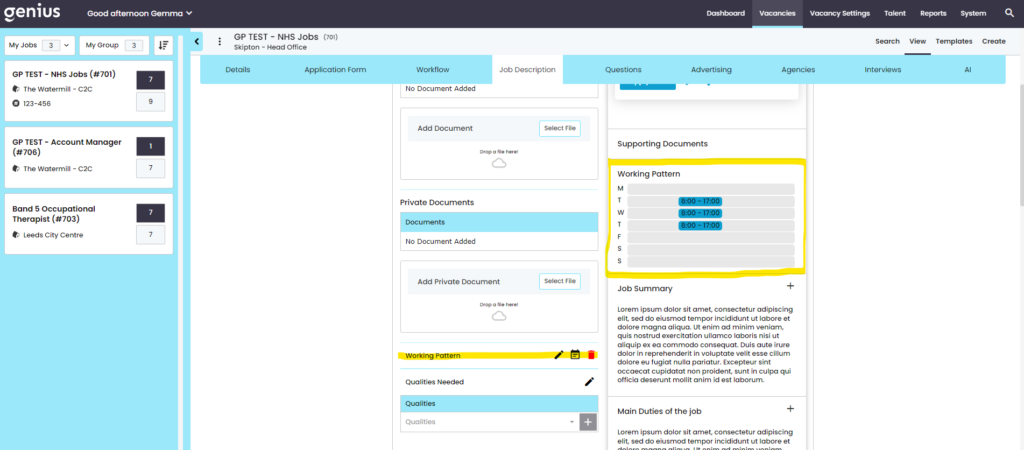
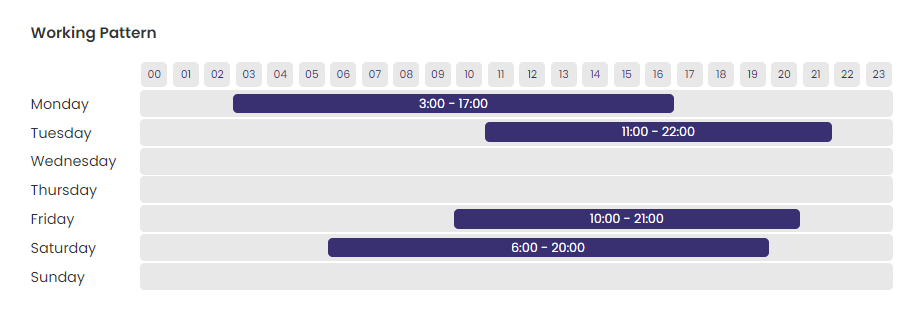
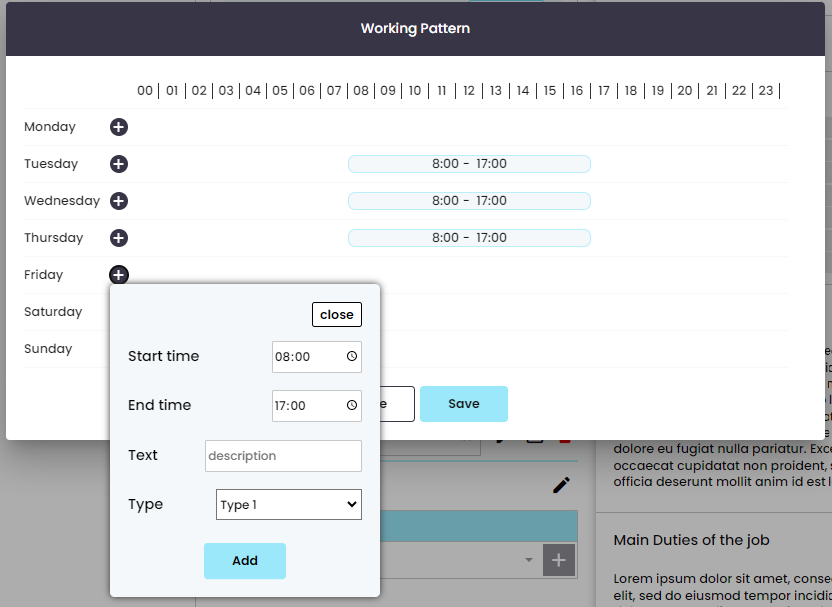
By using this area you are able to select any specific days and hours that will apply to the working pattern for the vacancy. You can do this by using the ‘+’ button and selecting the hours and days the candidate will be required to work for the role. This will then show in the schedule.
The working pattern will then appear in the vacancy on the candidate facing website.
Qualities Needed
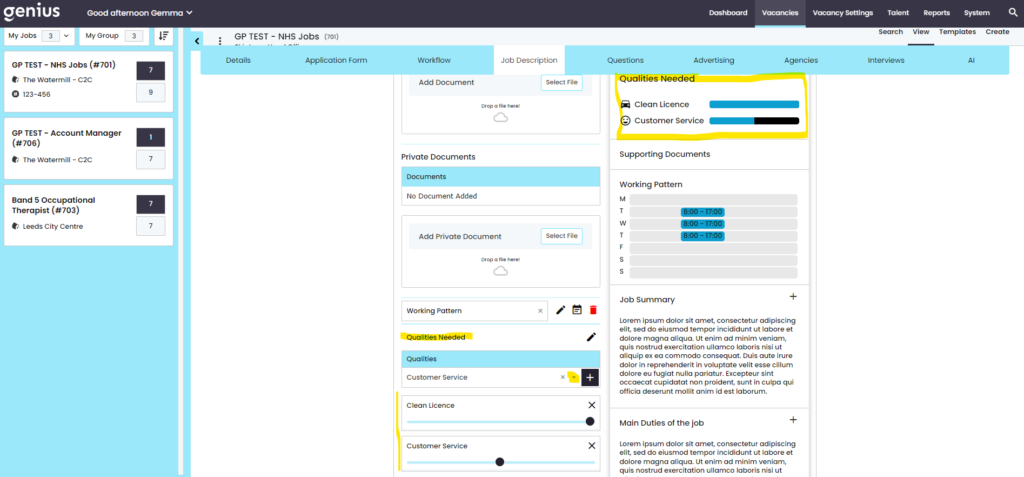
You may wish to highlight specific qualities that you are looking for from your candidates when they apply for a role with you. In the control panel, there is a section which allows users (with the correct permission) to add a library of qualities which are pulled through to this section of the vacancy template and can be used as and when required.
Once a quality has been added, it will appear in the vacancy advert preview. The bars will default to 50% and it is up to the vacancy creator to move them to the percentage they see fit to describe how important that quality is to a potential candidate.
Narration
The narration area allows you to create sections of content relevant to the role to provide information on e.g. ‘Who you are looking for’, ‘Benefits’, ‘About the Role’ and so on.
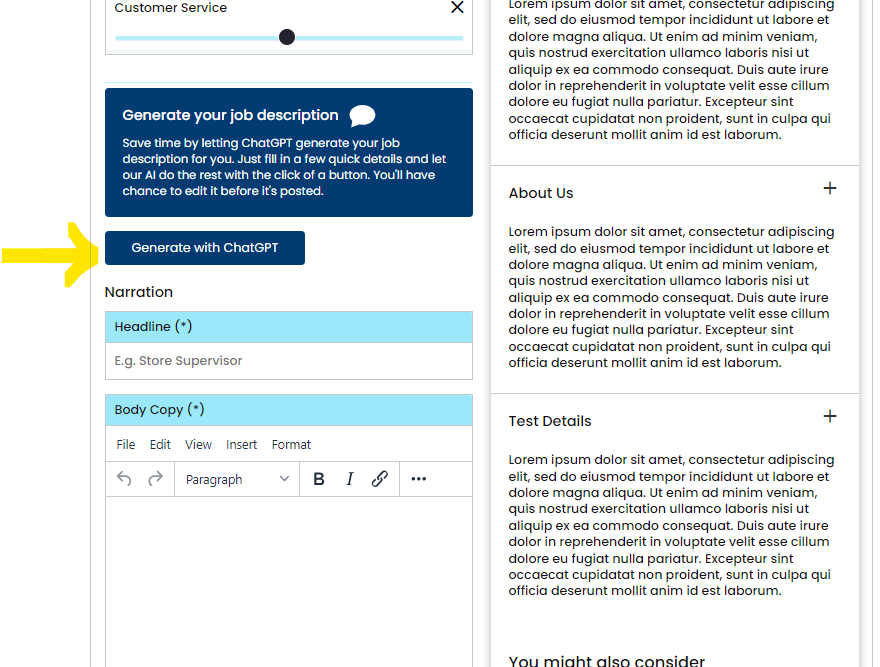
You can either (1) manually add the details OR (2) use the system ChatGTP functionality:
1 – Manually add the content
Add the Title of the section and the content underneath (formatting the content if required) and click [Add] to add the section. The details will now appear in the vacancy advert preview on the right, where you can check the information.
- Move (drag and drop the sort order) a section of content using the burger icon
- Edit a section of content using the pencil icon
- Delete a section of content using the Bin icon
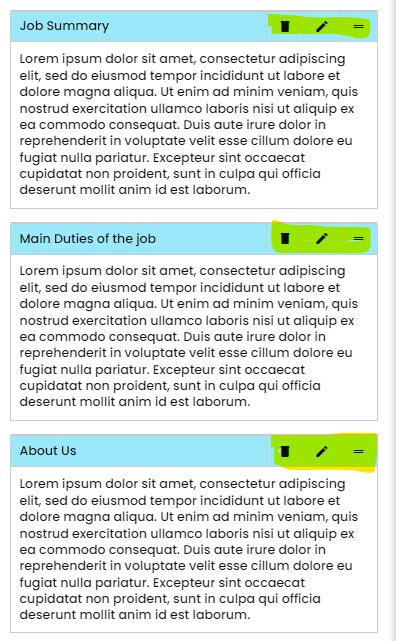
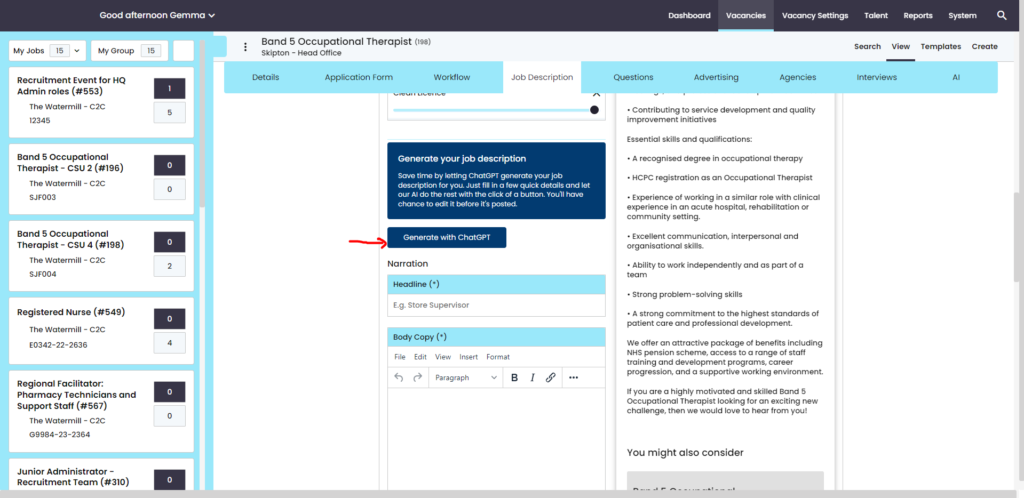
2. ChatGPT – Auto generate content
Genius ATS is now integrated with ChatGPT in the vacancy advert section. ChatGPT picks up the vacancy title and provides content for the role’s job description.
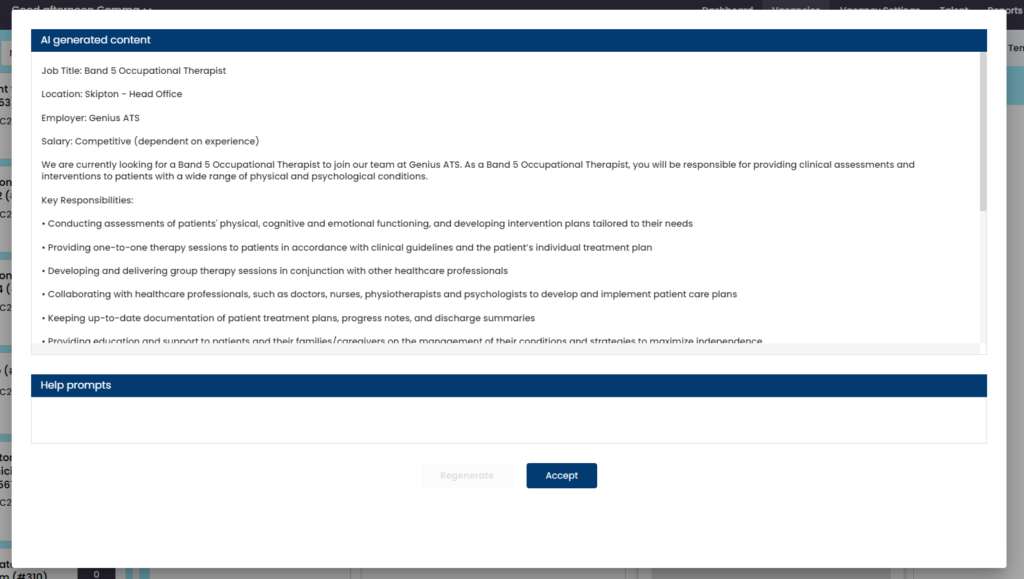
Users can edit the copy once the system has created it and this can be used in the vacancy template.
Click on [generate with Chat GPT]. The integration will search the web for suitable content, you can then review & [accept] or [regenerate]
Video
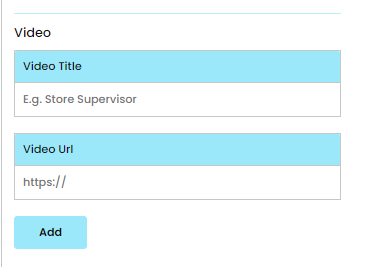
You can add a video to a vacancy by adding a Title and URL link. You will require the embedded link.
NOTE: Candidates may be looking at this vacancy on a mobile device therefore download speeds and costs should be considered when adding to this section.
Genius Group recommend a Vimeo streaming link:
Profile Template
The purpose of this new functionality is to add a personal touch to your vacancy. it could be you want to highlight who your team is or even who the mentor maybe, it will help the candidate feel more comfortable with the role they are applying to.
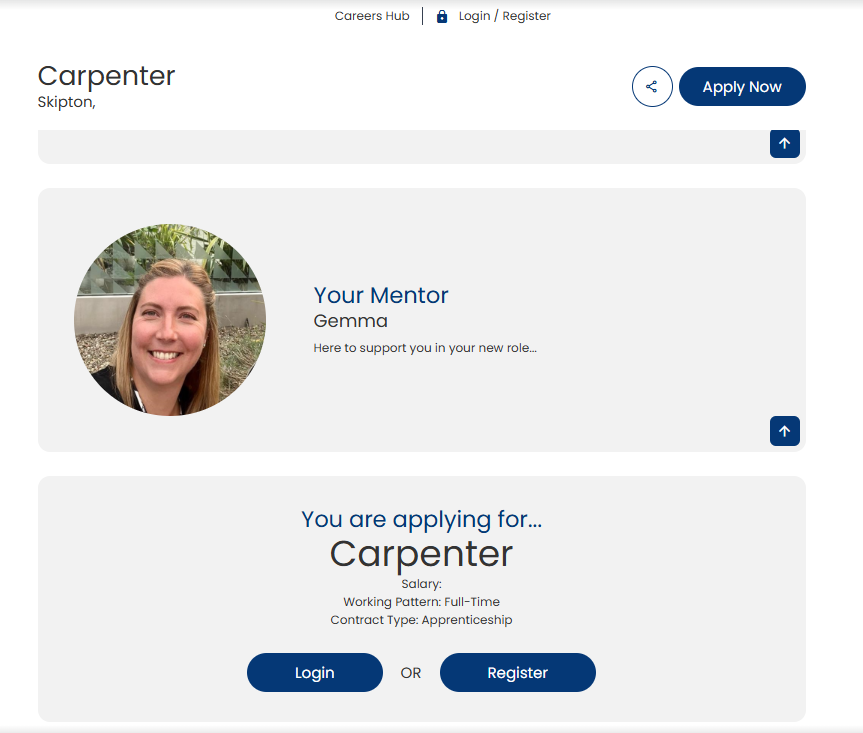
Too add this to your vacancies just follow the below instructions
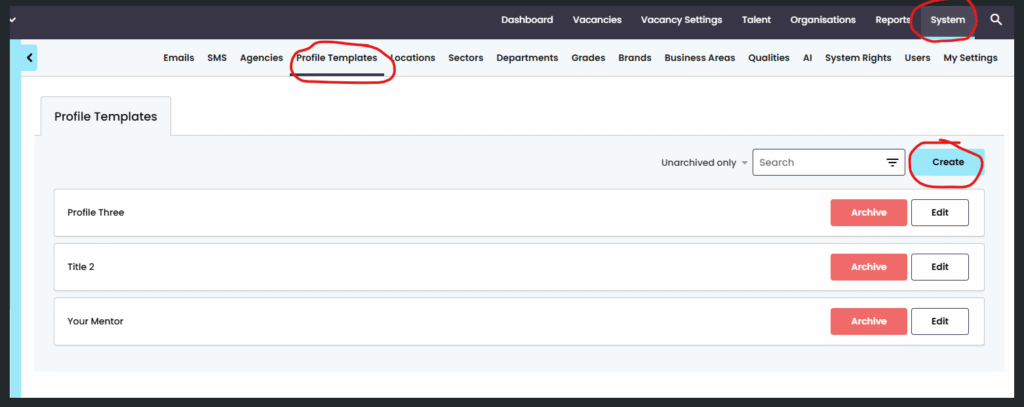
Go to System > Profile templates > Click create –
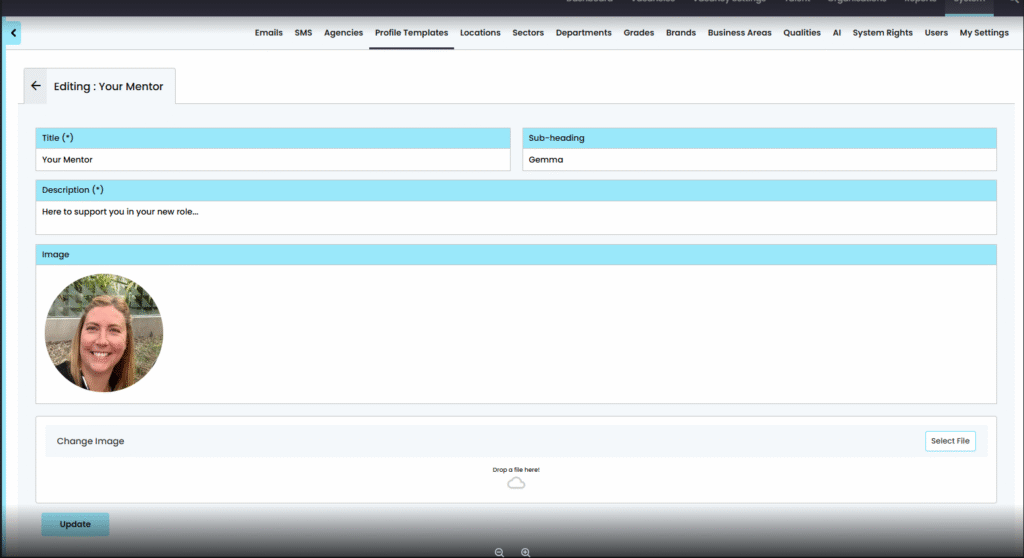
From here a pop up will appear to add your details (example below)
To assign it to the specific vacancy Go to Job description > Profile template
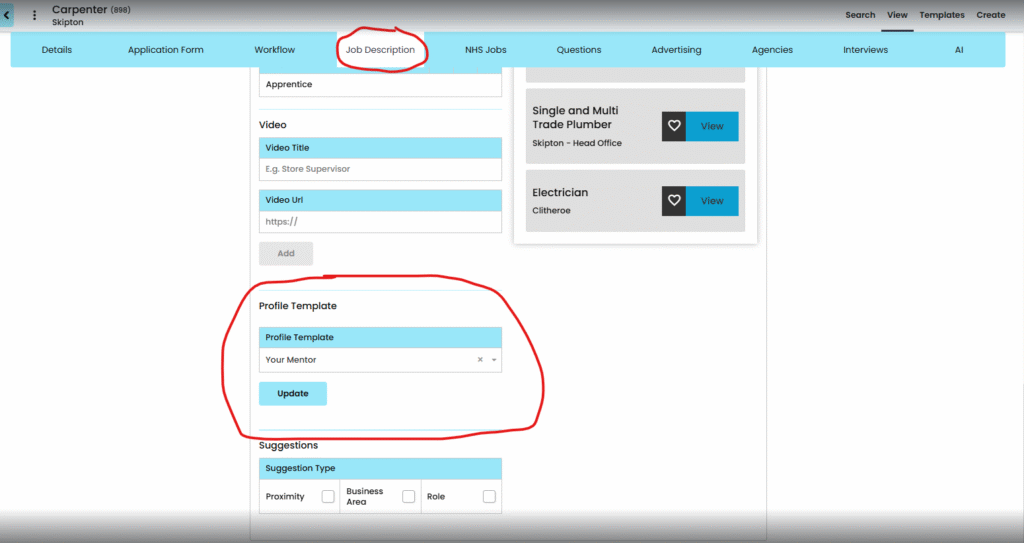
Then just select the relevant profile template for that role
Field Limitations
- Title
limited to 100 characters - Button
disabled until both title and url completed
Suggestions
The role can appear to candidates that have asked for job alerts bases on the following criteria that is set against the vacancy:
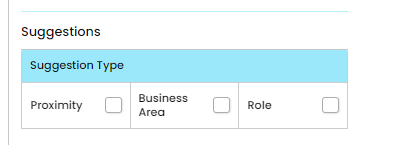
- Proximity
- Business Area
- Role