From the [manage] tab on the top right hand side of the control panel, users can manage all vacancies they have permission to see.
All vacancies will be listed in the left panel. Click on the vacancy you wish to view/manage/edit and the main panel.
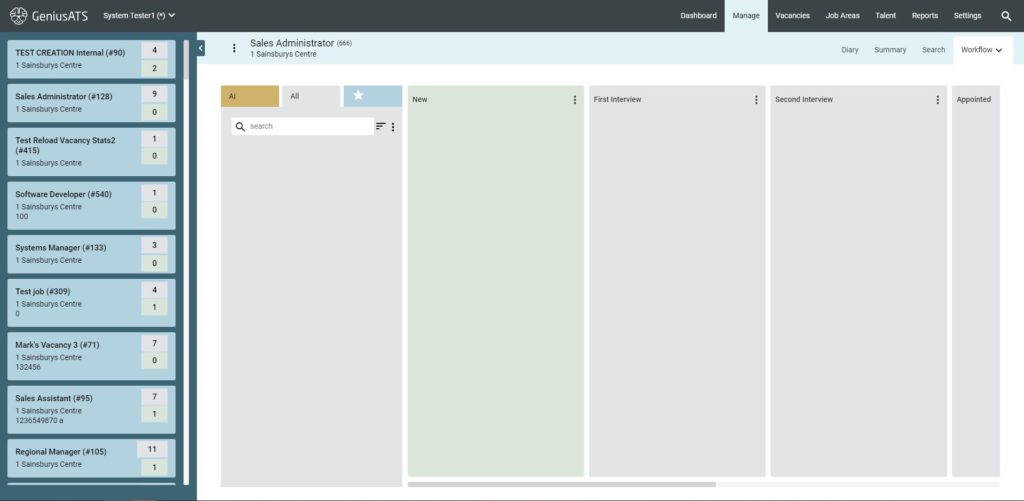
Each vacancy presents the user with the details of the pre-determined workflow as columns.
- All candidates are displayed in the first column under the [All] tab
- AI candidates appear in the first column under the AI tab
- Shortlisted candidates appear in the first column under in the blue tab (star)
- NEW candidates appear in the 2nd column
- Candidates which have been progressed to [stage] appear in the [stage] column
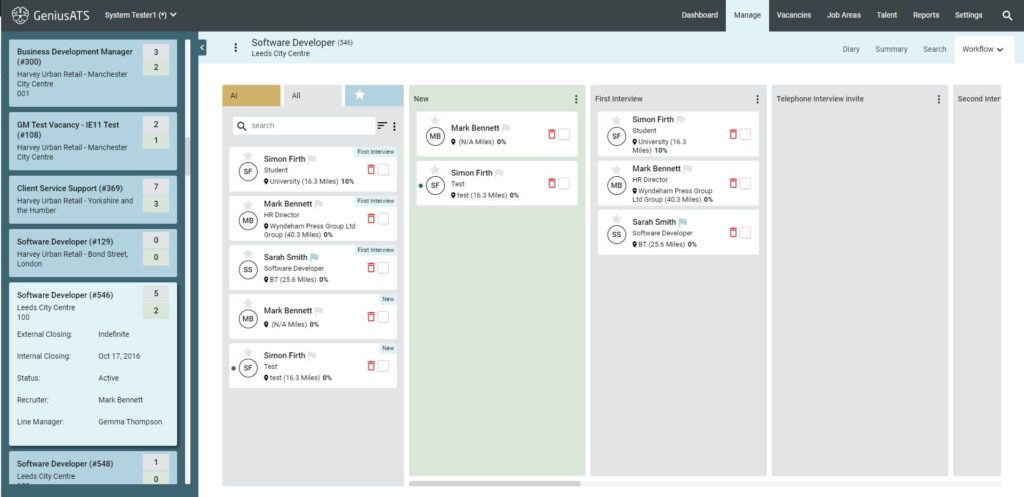
Progress / Reject Applications
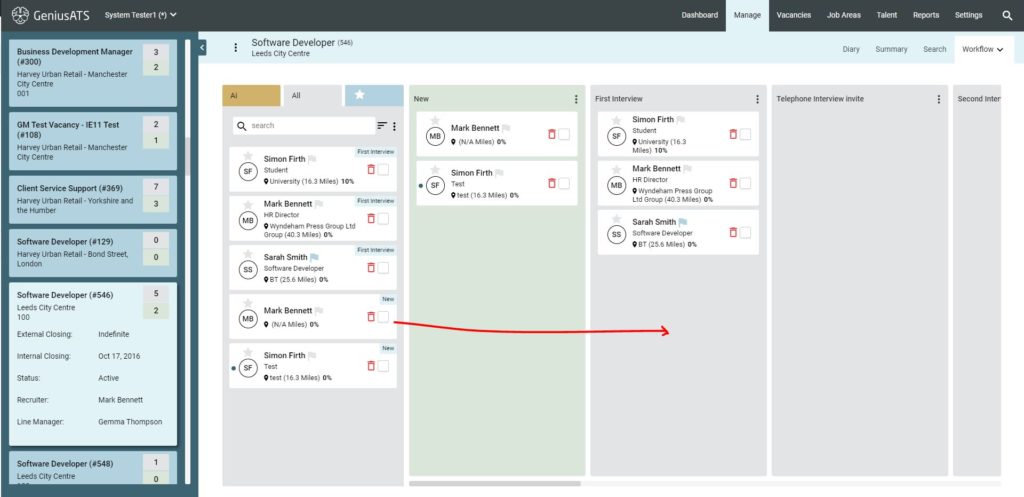
Drag and drop candidate cards into the appropriate section of the work flow, or use the action button located at the top of each column. If an action, such as an appointment or an email is attached to the workflow stage a pop up will appear with instructions
Candidates can also be rejected at any stage of the process by either;
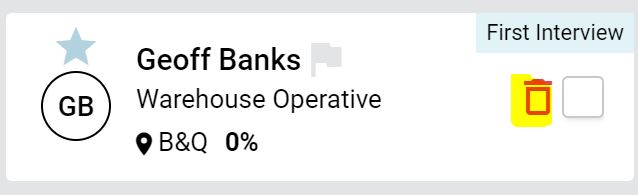
- clicking on the Bin icon against a candidate
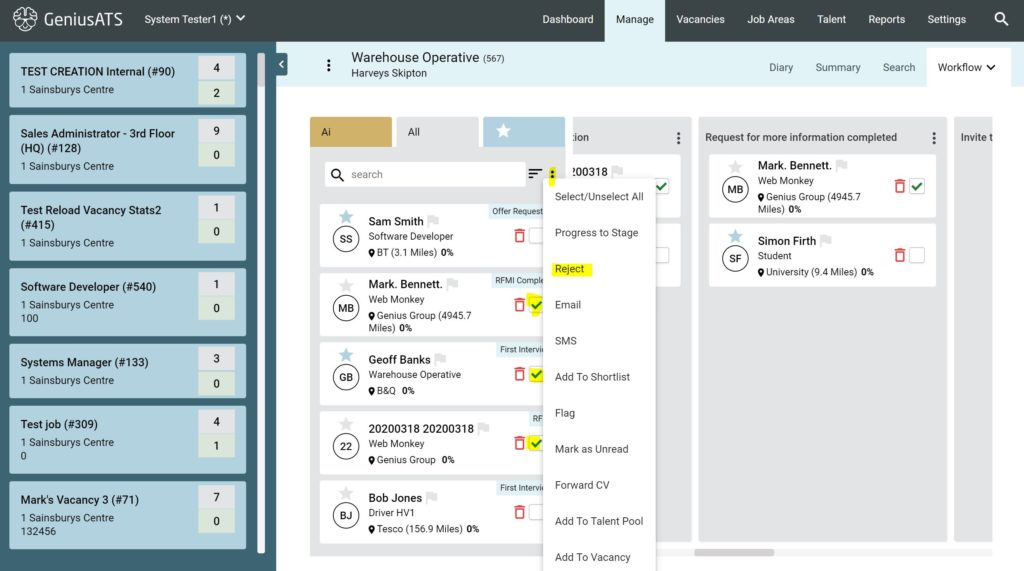
- Clicking the tick box on several candidates, clicking the [action] button at the top of the column and bulk [reject] candidate(s)
Search Applicants within a vacancy
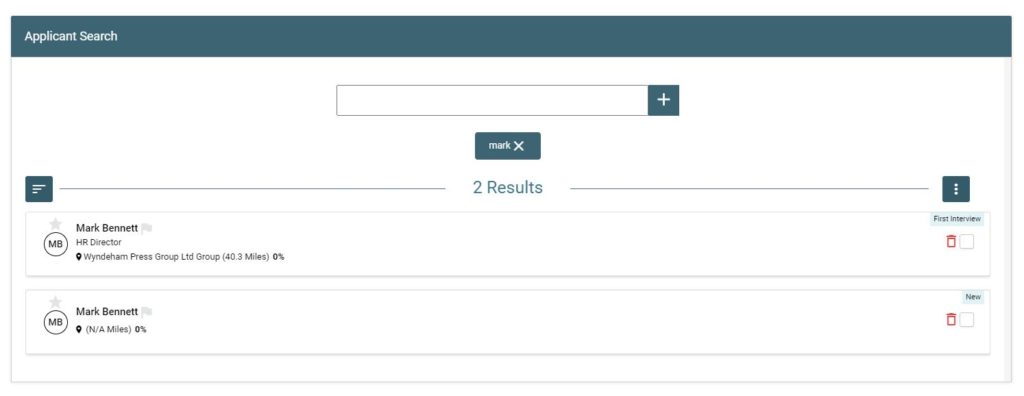
Click on the [Search] tab to find candidates that have applied to a specific vacancy.
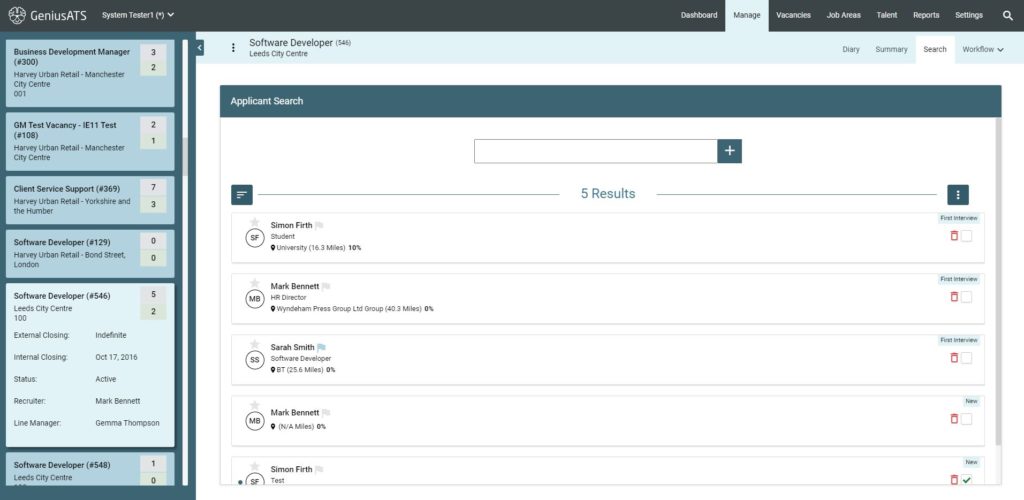
Use the filters and keywords to return the results