The functionality will allow you to add your own KPI’s to the workflow stages to see how candidates are been managed through the system
The candidates will be highlighted in
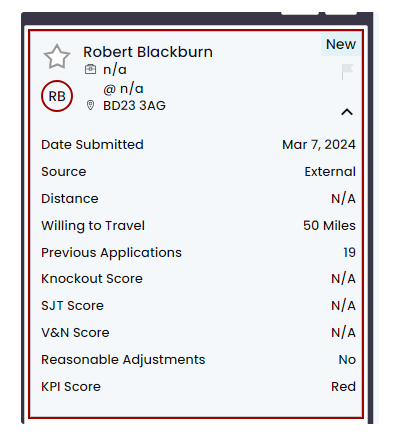
- Green – Means the user is on target
- Amber – Means the user has started to go over the threshold of what has been set
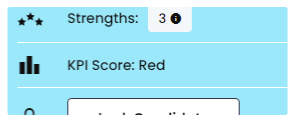
- Red – Means you have gone past the threshold of managing your candidate with the figure you have set
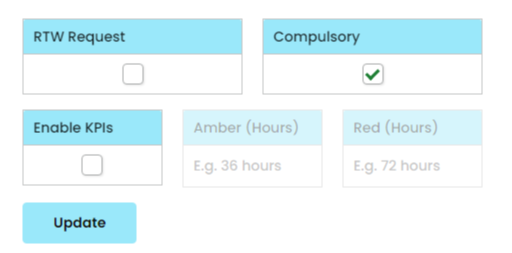
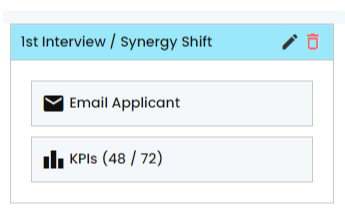
You will need to determine which workflow will require KPI’s. This will be set by ticking the ‘Enable KPI’s’ box. This will then give you the ability to confirm your KPI Hours for that workflow stage.
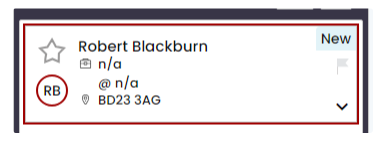
You can then view as a user where the candidate is so whether they are Green, Amber or Red

A basic CSV Report has also been created to give an overview of all vacancies and how many candidates are sat at each KPI. This can be altered with bespoke columns, please confirm with either your Account Manager or Client Support.
If you have any queries regarding a release, please contact:
E: clientsupport@geniusagency.co.uk
T: 01756 701222